Install guide
Get Millo
Choose the computer that will run Millo for your company. A desktop that stays on is ideal. Everyone else uses Millo from a browser: on your office network, or from job sites with Millo Hub.
1. Download the right version
-
Mac with Apple silicon
M1, M2, M3 or M4 · macOS 13 or newer
Included with Millo -
Mac with Intel
macOS 13 or newer
Included with Millo -
Windows
Windows 10 or 11, 64-bit
Coming soon -
Linux
x86-64 or ARM · Ubuntu 20.04, Debian 10 or newer
Coming soon
We've highlighted the version for this computer.
Already bought Millo? Find your download with your email and order number.
2. Open it
Mac
- Open the downloaded zip and move the folder it makes to Applications, or wherever you keep programs.
- Double-click Millo.command. Millo starts and opens in your browser.
- Double-click Install Millo (start at login).command once, and Millo starts by itself whenever you log in.
3. Set up your company
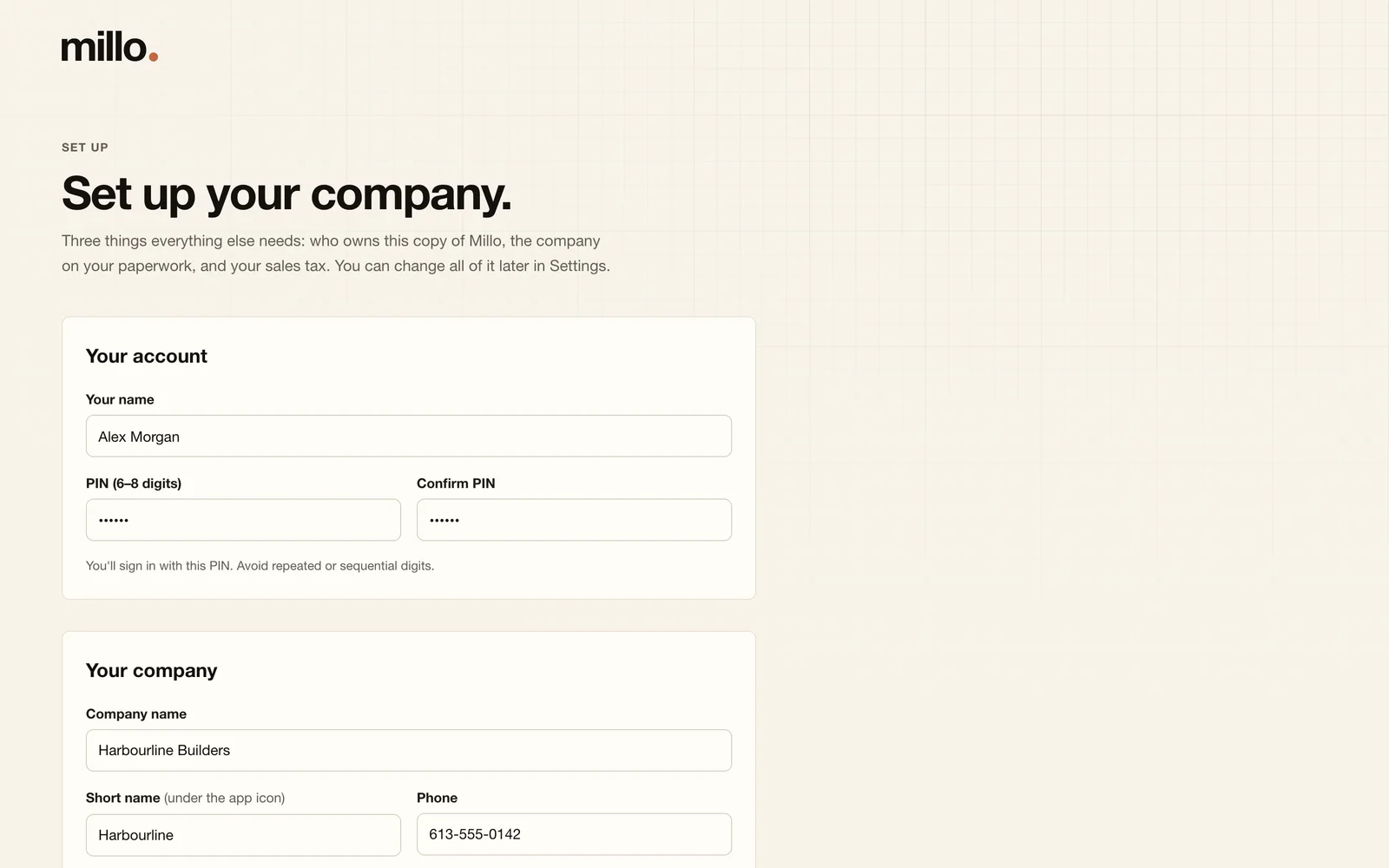
The first time Millo opens, it asks for three things: your name and a PIN for the owner sign-in, your company's details, and your sales tax. That's it. Add your logo and pick a palette straight after.
Crew phones
On the computer running Millo, open Settings, then Phones. A phone on your office Wi-Fi scans the code there with its camera, or opens http:// followed by the computer's name and :3100 (on a Mac the name ends in .local, for example http://office-mac.local:3100). Add it to the home screen and it opens like an app.
For job sites, turn on Millo Hub on the same page. It needs your company's domain on a free Cloudflare account; Millo sets up the rest and asks you to pair each phone once. Millo Link, which needs nothing set up, is coming soon.
Backups
Open Settings, then Backups, and choose a folder on a USB drive or a network drive. Millo copies your records there every night.
The assistant
Open Settings, then Assistant. Millo checks your computer and recommends a model. If Ollama isn't installed yet, the page links to its free download.
Looking after Millo
Where your records live
Mac: ~/Library/Application Support/Millo
That folder holds the database, your files, logs and backups, unless you send backups somewhere else. The Millo program folder holds none of it.
Backups and restoring
Millo backs up every night to the folder in Settings, then Backups, and keeps the last 14. To restore, double-click Stop Millo in the Millo folder, copy a backup into the records folder, and start Millo again. The Backups page has the steps.
Updates, PINs and removing
To update, download the new version and open it from its folder. Millo upgrades its records on the first start, saving a copy first. Forgot the owner PIN? Double-click Reset owner PIN in the Millo folder. To remove Millo, run the uninstall-autostart script and delete the program folder.